Message-to-task workflow
Turn a Message Into a Task Without Losing Context
A useful unified inbox should carry an important message into a concrete next step without making you copy the request into a separate tool.
- Publication date
- Updated
- Reading time
- 2 min read
- Author
- Linkrium Editorial Team
On this page5 sections
What the workflow does#
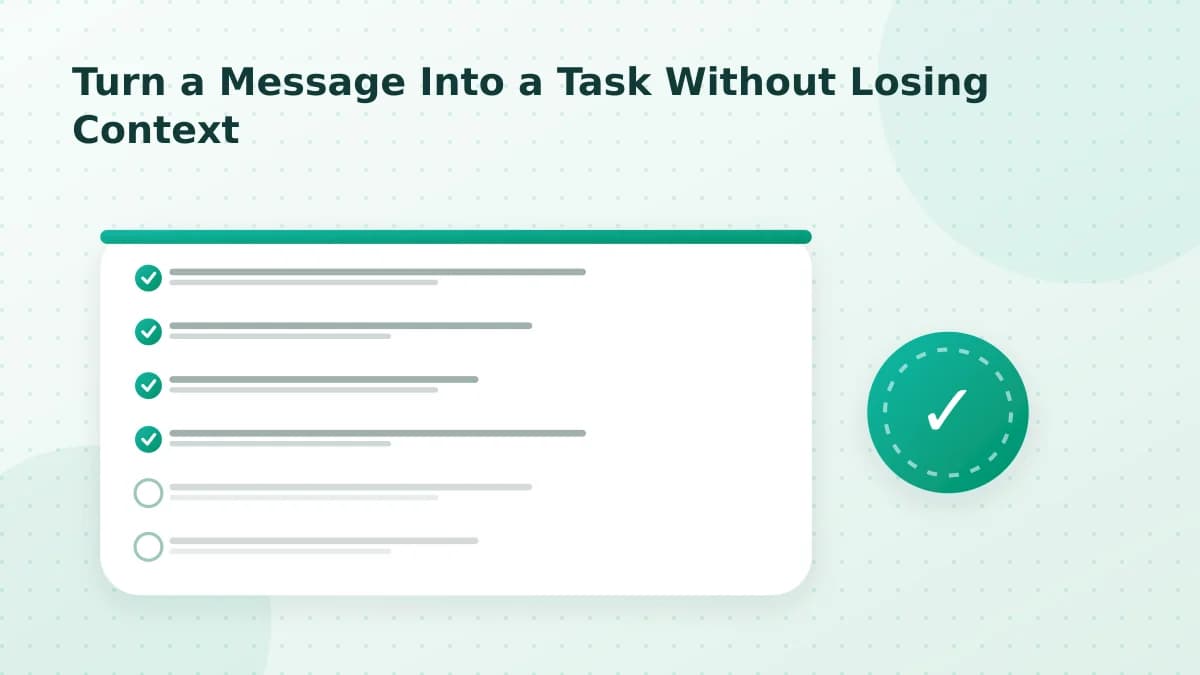
Open a synchronized conversation, choose the message that requires follow-up, and create a task from that context. Linkrium carries the person and conversation reference into the task so the reason for the work remains available when you return later.
When AI-assisted drafting is enabled, it can propose a task title or summary from the selected message. The proposal is not treated as a finished instruction: review the wording, remove sensitive detail that the task does not need, and confirm the result before saving.
Step-by-step setup#
- Connect a provider offered on the connection screen.
- Confirm that a test message arrives with the correct person and source label.
- Open the message actions and choose the task-creation control.
- Review the title, detail and originating conversation.
- Save the task and verify that it appears on the Tasks board.
- Reopen the conversation from the task before relying on the workflow for important follow-up.
What remains attached#
The task is an action record, not a duplicate message archive. It should retain enough context to identify the person and return to the originating conversation while the synchronized message remains governed by the connected provider and Linkrium's retention settings.
For a messaging workflow, that can mean turning “Can we talk Saturday?” into a dated follow-up action while leaving private details and contact identifiers inside their protected conversation context. The action should contain the minimum detail needed to follow through.
Limits to verify#
Task creation depends on a message already synchronized into Linkrium. Disconnected providers, deleted messages, unsupported history, missing permissions, synchronization delays and an unavailable AI pipeline can affect the flow. AI assistance may produce incomplete or incorrect wording and must be reviewed by the user.
Troubleshooting#
If the task control is absent, confirm that Tasks and AI insights are enabled for the deployment. If a saved task does not appear, refresh the Tasks board and check the authenticated API response before repeating the action. Avoid creating duplicates until the first request has a confirmed result.