Message organization
How to Organize Messages Across Apps: 7 Steps
A useful message system does not require perfect folders. It gives every conversation a clear place, a next action, and a reliable way to find it again.
- Publication date
- Published
- Reading time
- 6 min read
- Author
- Linkrium Editorial Team
Checked against first-party documentation on for iOS, Android, Web, Desktop. Interfaces change and rollouts are staged, so confirm details in your own app version.
On this page9 sections
When conversations are spread across email and several chat apps, the problem is rarely the number of messages alone. The harder problem is that every app has its own unread state, search, notification rules, and idea of what counts as organized.
The following system works whether you keep the native apps, use a launcher, or connect supported accounts to a message aggregator. Start with the behavior you want, then choose tools that support it.
If one native inbox is the immediate problem, use the focused setup for WhatsApp Lists, filters, and archive, Telegram folders and archive, or Instagram Message Requests, then bring the same states into the cross-app system below.
Quick answer#
List the inboxes you really check, then give every conversation exactly one of four states: active (needs an answer from you), waiting (needs an answer from someone else), reference (keep, no action) and done. Express those four states with whatever each app offers — labels, folders, lists, pins, archive, mute — instead of inventing a different scheme per provider.
Anything with a real deadline leaves the messaging app and becomes a task or reminder with a date. Review the whole set once a week so conversations that quietly changed state do not accumulate. The system below is the seven-step version of that idea.
Download the one-page cross-app message organization checklist to use during the setup and weekly review.
1. List every inbox you actually check#
Write down each account and messaging app you opened during the last seven days. Include secondary email accounts, browser tabs, workspaces, direct messages, and phone-only services.
For each one, note:
- who normally contacts you there;
- whether the inbox is personal, professional, or mixed;
- how quickly people reasonably expect a reply;
- which conversations would cause a real problem if missed;
- whether the account can be connected to another inbox safely.
This inventory exposes forgotten inboxes and duplicate roles. If two apps are both treated as the place for urgent requests, neither is dependable.
2. Give each channel one primary job#
Decide what each inbox is for. Email might hold formal or long-lived correspondence, while a chat account handles short updates from a particular group. The exact assignment matters less than making it explicit.
Tell frequent contacts which route to use for time-sensitive messages. You cannot organize other people’s apps, but you can reduce the number of places in which an urgent message might appear.
Avoid changing channels halfway through a decision unless there is a good reason. If a conversation moves, leave a short note in the original thread that says where it continued.
3. Organize around people and outcomes#
Folders based only on apps answer “where did this arrive?” They do not answer “what is happening with this person?”
Use contacts, labels, or a short task list to group messages by relationship and outcome. A conversation can then be treated as one of four states:
| State | Meaning | Next action |
|---|---|---|
| Reply | You owe a response | Answer or schedule a reply |
| Waiting | Someone else has the next move | Review on a chosen date |
| Reference | No action, but worth keeping | Archive with useful context |
| Done | No action and no reference value | Archive or remove it |
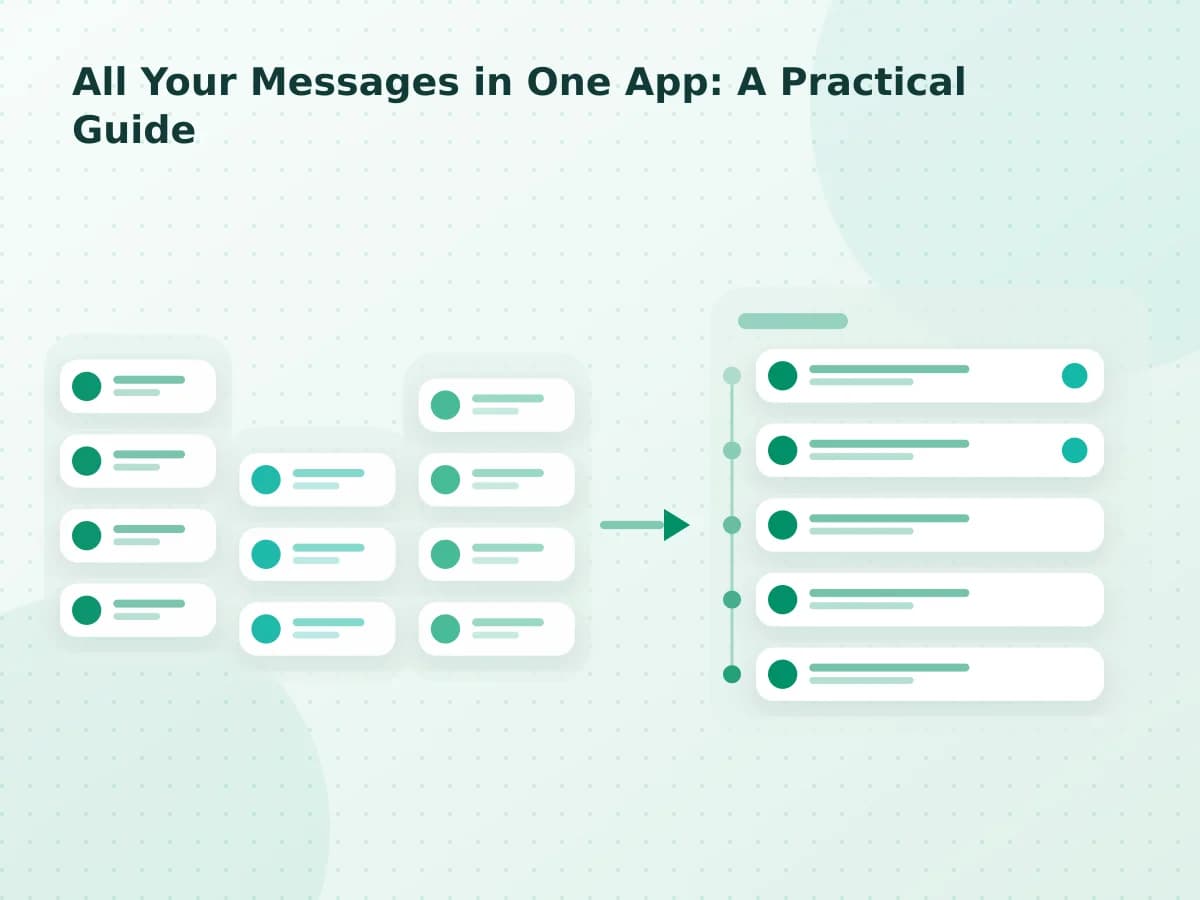
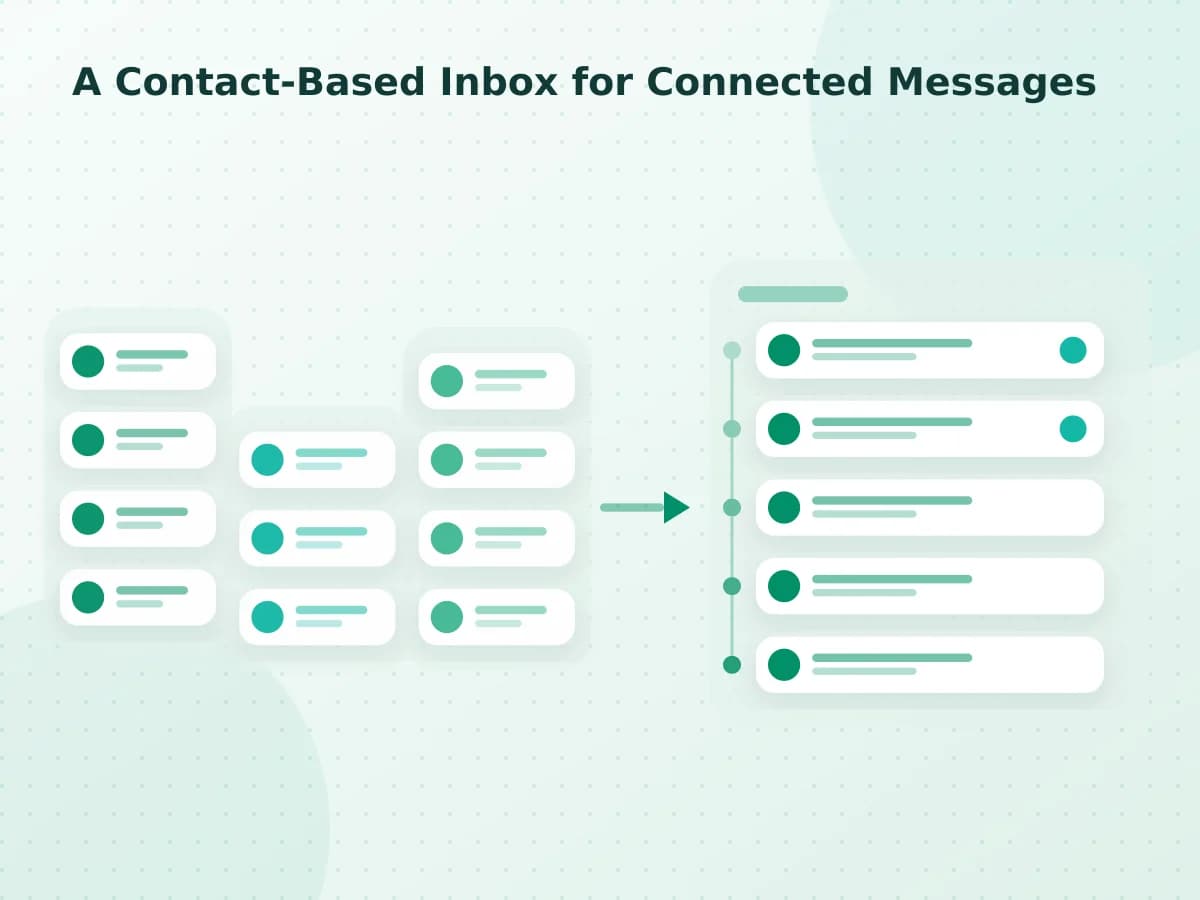
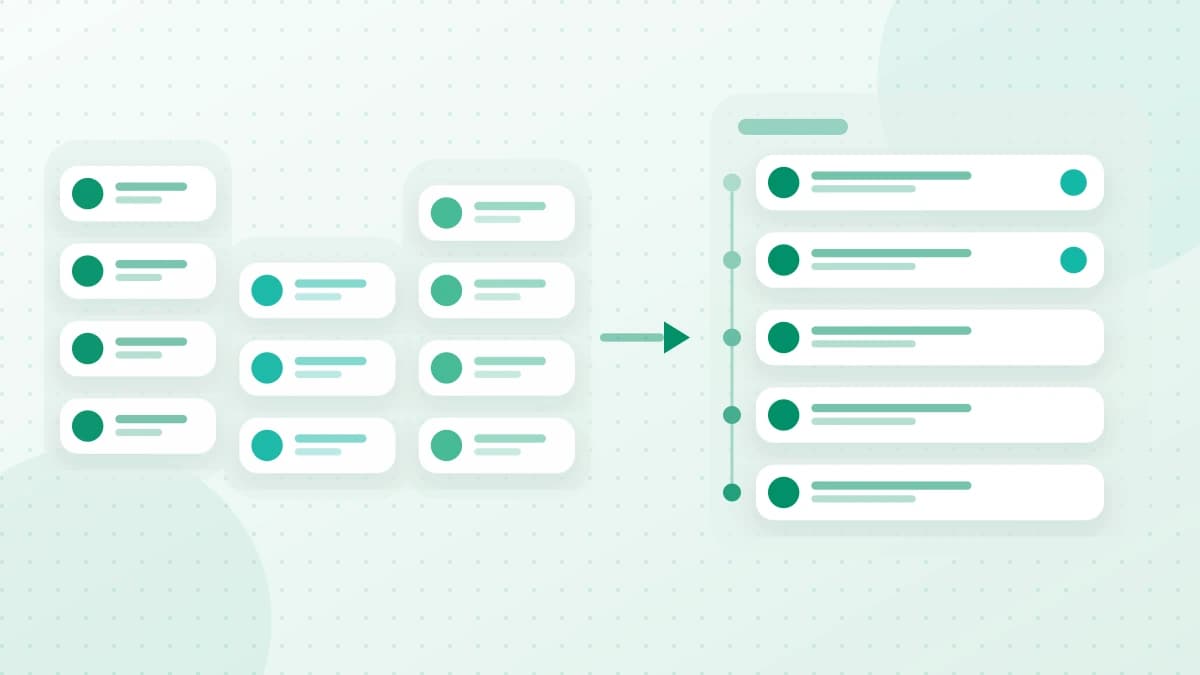
A contact-based inbox can make this easier by associating known identifiers with a person. Any automatic match should remain reviewable, because a wrong merge can hide context rather than clarify it.
4. Create one triage routine#
Choose two or three times a day to process non-urgent messages. During a triage session, open each required inbox once and make a decision on every new conversation you touch.
Do not use “unread” as a permanent task list. Unread status means you have not opened something; it does not explain whether you need to reply, wait, save, or close it.
For a message that needs more work, create a task with a specific action such as “send the revised dates to Morgan.” A vague task like “check messages” recreates the same decision later.
5. Reduce notifications before adding another tool#
Keep immediate alerts for the small number of contacts or channels that truly need them. Batch promotional, group, and low-priority notifications. Remove duplicate browser, email, and phone alerts for the same event.
Notification settings should follow the channel jobs from step two. If an inbox is checked twice daily, it probably does not need to interrupt you for every arrival.
Use quiet hours where available, but keep an agreed emergency route for the people who may genuinely need to reach you.
6. Make search work before you need it#
Search is most reliable when messages retain their source, sender, timestamp, and surrounding conversation. Before depending on a shared search, test it with a distinctive phrase in a non-sensitive conversation.
Check the history depth of every connected account. An aggregator can search only the content it successfully synchronized; deleted, disappearing, unsupported, or older messages may remain available only in the original app.
For decisions you may need later, write one summary message with the final outcome, date, and owner. A clear written decision is easier to retrieve than fragments spread across several threads.
7. Review the system once a week#
Spend ten minutes looking for:
- conversations left in “waiting” with no review date;
- contacts split across duplicate records;
- an app you are checking even though nothing useful arrives there;
- recurring messages that should become a filter or muted notification;
- account warnings, failed synchronization, or expired connections.
Organization is maintenance, not a one-time cleanup. A small weekly review prevents the system from turning into another neglected inbox.
A 15-minute setup#
If you want to start now, use this short version:
- List the inboxes you opened this week.
- Circle the three that contain important conversations.
- Assign each circled inbox a primary job.
- Turn off one category of low-value notifications.
- Process every visible conversation into reply, waiting, reference, or done.
- Schedule the next two message-checking blocks.
- Put a weekly ten-minute review on your calendar.
Only after this workflow is clear should you consider combining accounts. An all-in-one messaging app can reduce repeated checking, but it should preserve provider labels, identity, and delivery limits rather than conceal them. Check which networks the connection screen currently offers before connecting anything.
Frequently asked questions
Do I need one app for everything to get organized?
No. The four states in this system — active, waiting, reference and done — can be applied with the native tools each provider already offers. A single interface reduces switching, but the states are what make the next action obvious.
Is inbox zero the goal of this system?
No. An empty inbox achieved once tells you nothing about what still needs an answer. The goal is that every conversation you keep has a state and, where relevant, a next action with a date attached to it.
How often should I review the whole system?
Once a week is enough for most personal setups. The weekly pass exists to catch conversations that silently moved between states: something you were waiting on arrived, or something active is now finished and can be archived.
What should I do about apps that have no folders or labels?
Use the states the app does support — unread, pinned, archived or muted — and keep anything with a real deadline in one reminder or task list outside the messaging app. Do not rely on an unread badge to remember a commitment.
Official sources
The sources below support the platform behavior discussed in this article.