WhatsApp in Linkrium
Connect WhatsApp to Linkrium and Find Messages Faster
On Linkrium, you can add your WhatsApp account to the unified inbox and find synchronized messages inside a conversation using a search query or a specific date.
- Publication date
- Published
- Reading time
- 7 min read
- Author
- Linkrium Editorial Team
Checked against first-party documentation on for Web, iOS, Android. Interfaces change and rollouts are staged, so confirm details in your own app version.
On this page9 sections
Linkrium can bring messages from an eligible WhatsApp account into the same person-based inbox you use for other connected channels. Once those messages have synchronized, you do not have to scroll through an entire conversation to recover one detail: you can search its text or jump to the date when you remember the exchange happened.
The two retrieval tools solve different problems. Search in conversation accepts a text query and moves between matching messages. Go to date opens the conversation around a selected day. They are separate controls, so choose the one that matches the clue you remember.
Quick answer#
To add WhatsApp to Linkrium, open Channels, choose WhatsApp, enter your phone number with its country code, and request a pairing code. On your phone, open WhatsApp and go to Settings → Linked Devices → Link a Device → Link with phone number instead, then enter the code Linkrium displays.
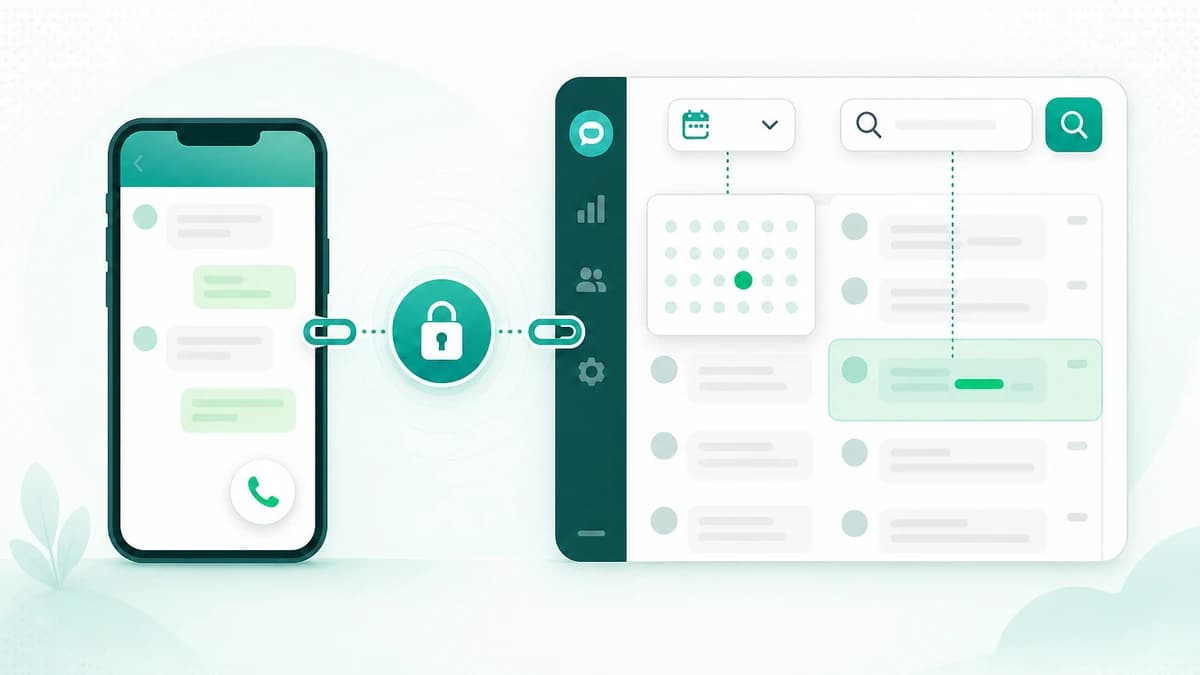
After the connection becomes active and messages begin appearing in the inbox, open a conversation. Use the magnifying-glass control to search synchronized message text with a query of at least two characters. Use the calendar control labelled Go to date to select a day and open the timeline around it.
| What you remember | Linkrium control | What it does |
|---|---|---|
| A phrase, name, reference, or other wording | Search in conversation | Finds matching synchronized messages in the open conversation |
| The day the exchange happened | Go to date | Opens the first available part of the conversation on or after that day |
| The person, company, or recent preview | Inbox search | Narrows the conversation list before you open a thread |
Add your WhatsApp account to Linkrium#
You need access to the WhatsApp account and phone you are connecting. Link only an account you control and review your organization’s privacy and retention responsibilities before synchronizing work or customer conversations.
Start the connection in Linkrium#
- Sign in to Linkrium and open Channels.
- Choose WhatsApp.
- Enter the WhatsApp phone number in international format, including the country code.
- Select Get pairing code.
- Keep the Linkrium dialog open while you finish on your phone.
Linkrium uses a WhatsApp Web–compatible linked-device session for this flow, not the official WhatsApp Business API. The connection screen states this boundary directly. Use the account responsibly and do not use the connection for spam or automated outreach.
Enter the pairing code in WhatsApp#
On the phone that has the WhatsApp account:
- Open WhatsApp.
- Go to Settings → Linked Devices.
- Choose Link a Device.
- Select Link with phone number instead.
- Enter the pairing code shown by Linkrium.
Linkrium waits for WhatsApp to confirm the session. When the connection becomes active, a success message confirms that WhatsApp is connected and that messages will begin appearing in the inbox shortly.
If the code expires, request a new one. If the phone appears offline, open WhatsApp on the phone and confirm it has a network connection. A logged-out or expired session needs to be reconnected from Channels.
Find the right WhatsApp conversation#
The search field above the Linkrium conversation list is useful when you first need to locate the thread. It can narrow the currently loaded list using the contact name, company, or recent message preview.
That inbox field is different from message search. Use it to find and open the person’s conversation; then use Search in conversation when you need to inspect the full synchronized message history for that thread.
Because Linkrium organizes known channel identities around a person, the conversation may include more than one source. Every message keeps its source label, so you can confirm that a matching item came from WhatsApp before relying on or replying to it.
Search synchronized messages with a query#
Open the conversation, then select the magnifying-glass control in its header. On a small screen, the same action is available from the conversation menu as Search in conversation.
Enter at least two characters. Linkrium searches the synchronized message text in that conversation, reports how many matches it found, highlights the active match, and provides older and newer controls for stepping through the results. Pressing Enter also moves to the next older result; Shift + Enter moves toward a newer one.
Queries work best when they contain a distinctive detail, such as:
- an order or booking reference;
- part of an address;
- a product or project name;
- an uncommon phrase from the discussion;
- a filename or domain mentioned in a message.
A broad query such as “yes” can produce too many results. Begin with the most specific wording you remember, then shorten it if nothing appears. Search is case- and accent-insensitive, so capitalization and common accent differences should not prevent a match.
The result set covers messages that are available in the synchronized Linkrium conversation. Search does not restore WhatsApp messages that were deleted, expired, never synchronized, or are otherwise unavailable to the connected session.
Jump to WhatsApp messages by date#
When you remember the day rather than the wording, open the conversation and choose the calendar control labelled Go to date. Select a date and choose Go. Linkrium loads the relevant part of the conversation and highlights the first available message on or after the start of that day in your local timezone.
This behavior is a date jump, not a permanent day-only filter. Messages before and after the selected point remain part of the conversation, and you can load earlier or newer context as needed. That makes the control useful when the detail you need depends on what was said immediately before or after it.
Use Go to oldest when you want the beginning of the available conversation instead of a particular day. To return to current activity after reviewing an older section, choose Return to latest.
Choose date or query without extra scrolling#
Search and date navigation are deliberately separate. A simple workflow is:
- Use inbox search to open the correct person or conversation.
- If you remember exact wording, open Search in conversation and enter the query.
- If you remember only the day, choose Go to date instead.
- Read the surrounding messages to verify the meaning and source.
- Return to the latest messages when you are finished.
If you know both a date and a phrase, start with the stronger clue. A distinctive reference is usually fastest with message search. A common word from a known week is usually faster with the date jump, followed by a short review of the nearby conversation.
Keep connection and search boundaries in mind#
Connecting an account lets Linkrium display and work with synchronized messages. It does not change WhatsApp’s rules, recover missing history, or make every provider-side item searchable forever. The source provider still controls its own account, delivery, device-linking, and deletion behavior.
Treat a connected inbox as sensitive. Remove connections you no longer use, review linked devices in WhatsApp, protect access to the Linkrium workspace, and check the security overview before connecting conversations with confidential or regulated information.
For native search options in the WhatsApp apps themselves, read how to search WhatsApp messages by date, sender, and media. For the broader Linkrium workflow, see how cross-channel search keeps the person, timestamp, and source visible while you review synchronized messages.
Frequently asked questions
Can I add my WhatsApp account to Linkrium?
Yes. When WhatsApp is enabled for your Linkrium workspace, open Channels, choose WhatsApp, enter the phone number you control, and complete the linked-device pairing steps shown on screen.
Can I filter WhatsApp messages by date in Linkrium?
You can open a synchronized conversation and use Go to date to jump to the first available message on or after the selected day. It opens the relevant part of the timeline rather than hiding every message outside that date.
Can I search a Linkrium WhatsApp conversation by keyword?
Yes. Open the conversation, choose Search in conversation, and enter at least two characters. Linkrium shows the matching synchronized messages and lets you move between older and newer results.
Do the date and search controls work as one combined filter?
No. Search in conversation and Go to date are separate controls. Use the date jump when you remember when something happened, or use a search query when you remember the wording.
Official sources
The sources below support the platform behavior discussed in this article.